Introduction
Today, we are excited to introduce the Cursor code editor version 0.45.6, featuring the groundbreaking MCP (Model Context Protocol) integration!
What is MCP?
MCP (Model Context Protocol) is an open protocol that standardizes how applications provide context for large language models (LLMs). You can think of MCP as a USB-C port for AI applications. Just as USB-C provides a standardized way to connect your devices to various peripherals, MCP offers a standardized method for connecting AI models to different data sources and tools.
Why Choose MCP?
MCP helps you build agents and complex workflows on top of LLMs. LLMs often need to integrate with data and tools, and MCP provides:
- A growing list of pre-built integrations: Your LLM can directly plug into these integrations for quick connections to various data and tools.
- Flexibility to switch between LLM providers: Since MCP is an open standard, you can easily change LLM providers as needed without massive modifications to your entire system.
- Best practices for data protection: MCP offers a set of best practices to help you securely protect data within your infrastructure, ensuring sensitive information is handled properly.
By using MCP, you can develop and deploy AI applications more efficiently while ensuring scalability, security, and flexibility in your systems.
MCP Architecture Diagram
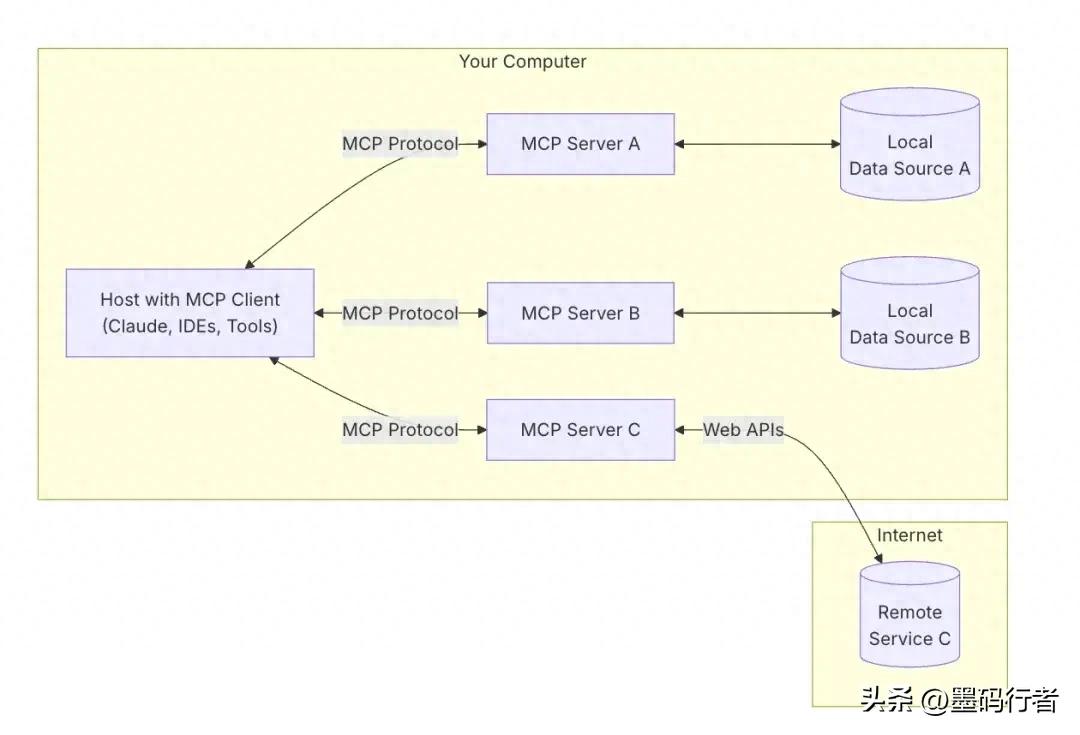
- MCP Hosts: Programs like Claude Desktop, Cursor, or AI tools that wish to access data through MCP.
- MCP Clients: Protocol clients maintaining a 1:1 connection with the server.
- MCP Servers: Lightweight local server programs that expose specific functionalities through the standardized Model Context Protocol, supporting multiple instances.
- Local Data Sources: Computer files, databases, and services that can be securely accessed via MCP servers.
- Remote Services: External systems available on the Internet that can be connected through MCP servers (e.g., via API).
My Understanding
MCP is a protocol that defines a specification/rule aimed at connecting LLMs with external data sources. The goal is to extend the capabilities of LLMs, with the current consensus being to build AI agents or automate workflows.
In simple terms, MCP (Model Context Protocol) acts as a bridge that cleverly connects the Cursor code editor with powerful AI models. Through MCP, Cursor transforms from just a code editing tool into an intelligent AI assistant, capable of calling various AI services to aid development, such as:
- Intelligent information search (Brave Search)
- Web content scraping (Fetch)
- Calling image generation models (Replicate, Flux)
- Even deeper thinking and reasoning (sequentialthinking)
For example, using Cursor with my locally set up three MCP servers:
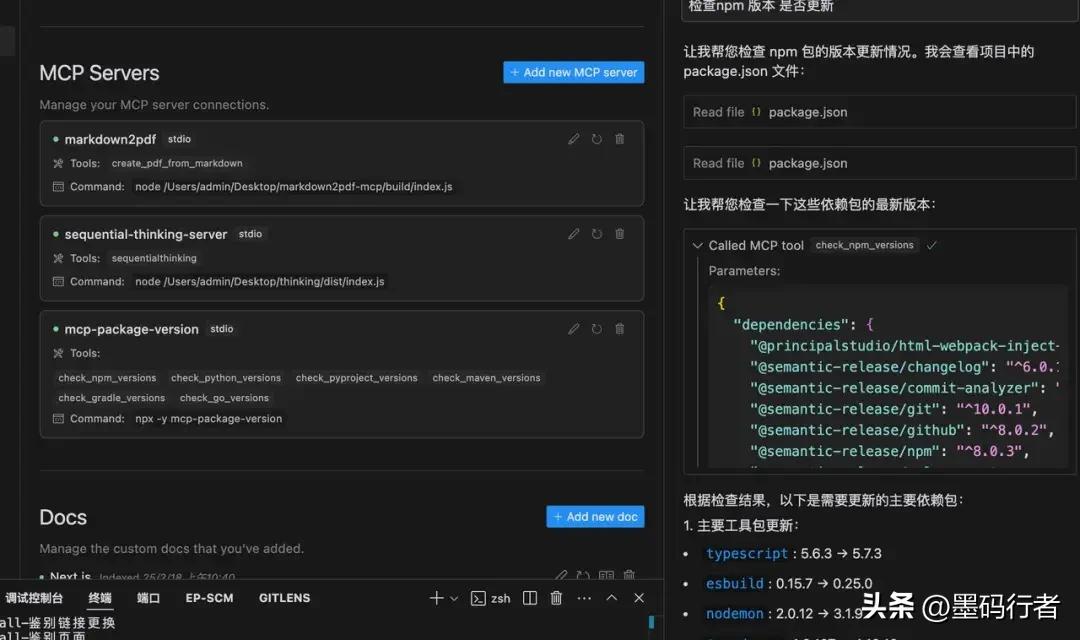
- Markdown2pdf: Organizes discussions with Cursor into markdown and then converts them into local PDF format.
- Sequentialthinking: Allows the large model’s responses to follow a deep-seek style, integrating a thinking chain model.
- Mcp-package-version: Helps accurately analyze the latest versions of current project dependencies.
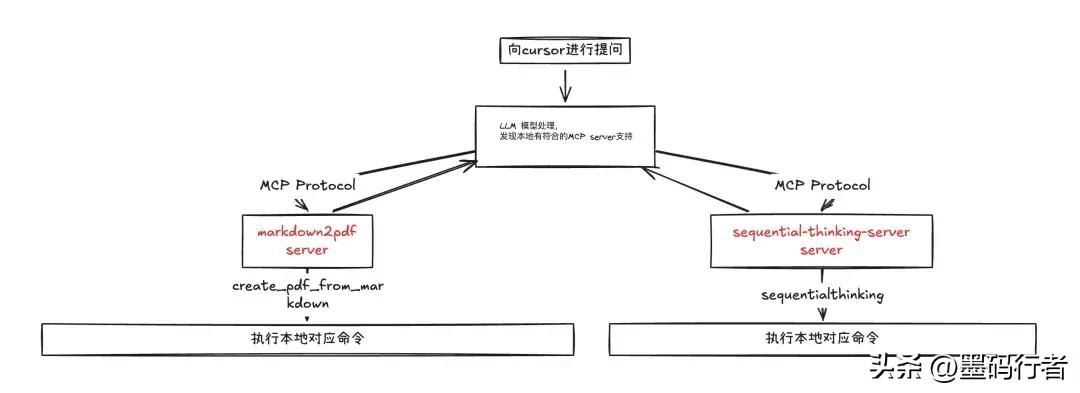
Users can ask questions to the LLM, which processes and discovers that there are locally executable MCP server tools available. It then prompts you to execute the local MCP tool. Upon acceptance, the data input from the MCP tool is returned to the LLM.
In summary: MCP allows large models to call your self-developed toolkits (like markdown to PDF, web scraping, etc.) during your use of Cursor.
Installation Steps
- Open Cursor settings.
- Navigate to Cursor settings > Features > MCP.
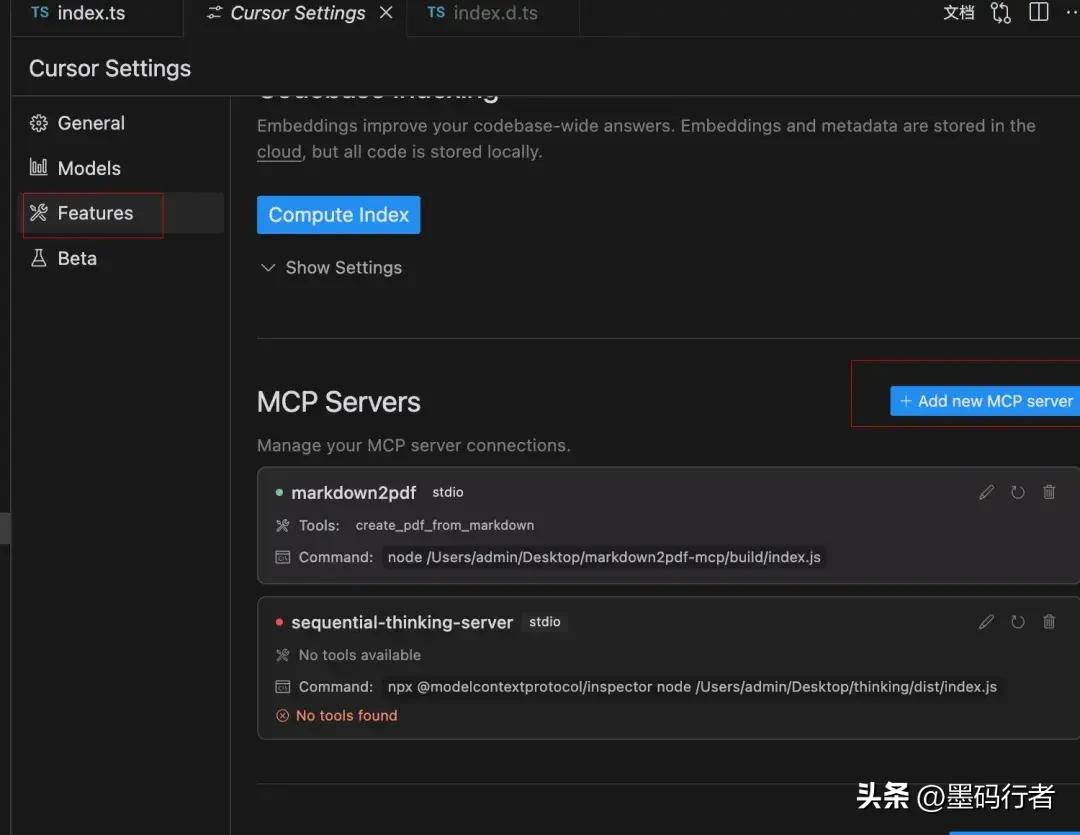
- Click the “+ Add New MCP Server” button.
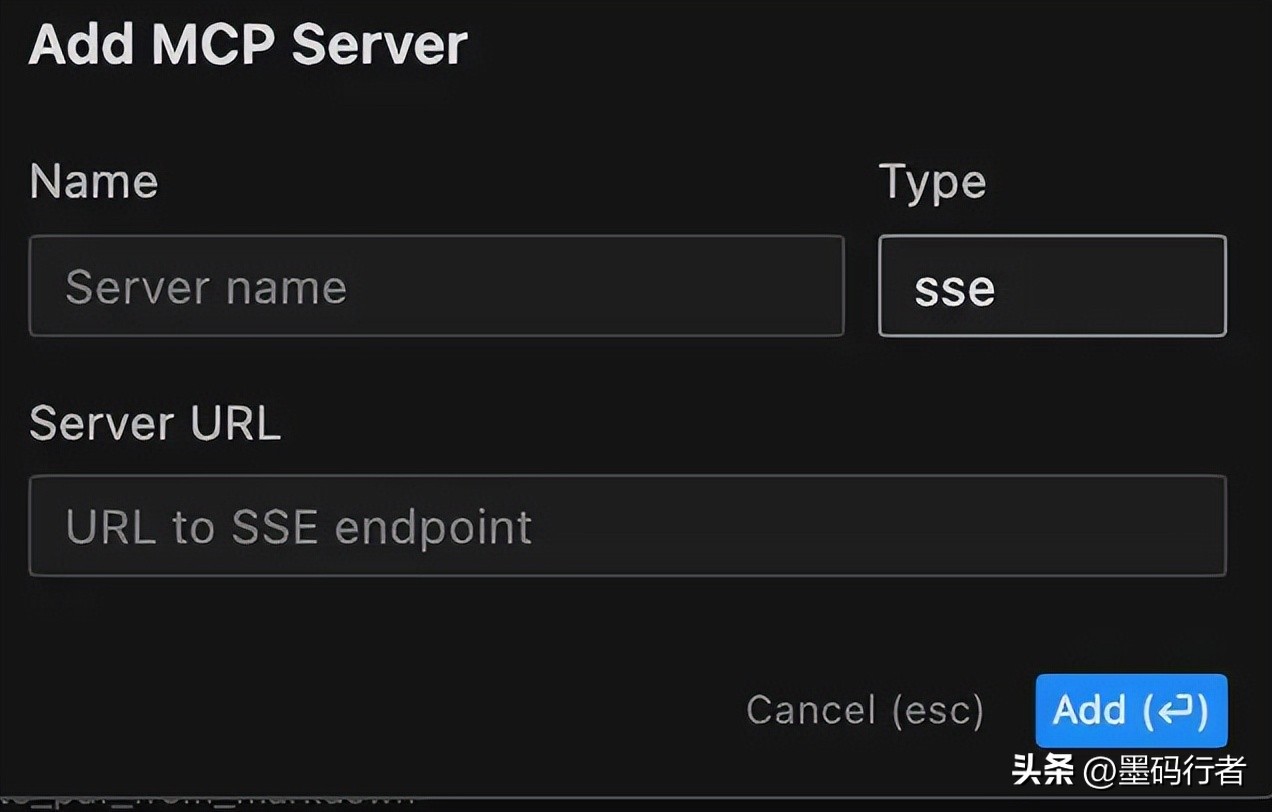
- Configure the server:
- The second option can execute an MCP server that has been published as an npm package.
- For SSE servers: URL of the SSE endpoint.
- For stdio servers: Executable shell command, supporting two modes of operation.
- Name: Give your server a nickname, which can be anything.
- Type: Choose the transport type (stdio or sse).
- Command/URL: Enter the following content:
- Run the locally packaged MCP server with Node.
For example, Cursor will automatically scan which tools the server provides:
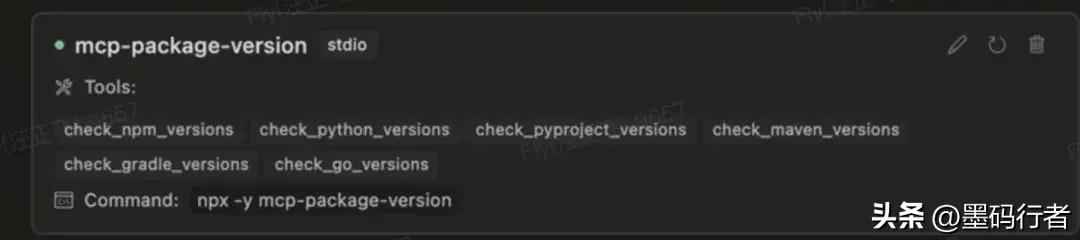
Write a string-reversing MCP server.
Installation
npm install @modelcontextprotocol/sdk
Define MCP Server
McpServer is your core interface with the MCP protocol. It handles connection management, protocol compliance, and message routing.
import { McpServer, ResourceTemplate } from "@modelcontextprotocol/sdk/server/mcp.js";
const server = new McpServer({name: "My App", version: "1.0.0"});
Define the Capabilities Provided by the MCP Server
MCP supports Resources, tools, and Prompts functionality, but Cursor currently only supports tools, so this article will demonstrate the writing of tools.
For detailed capabilities, refer to https://modelcontextprotocol.io/clients.
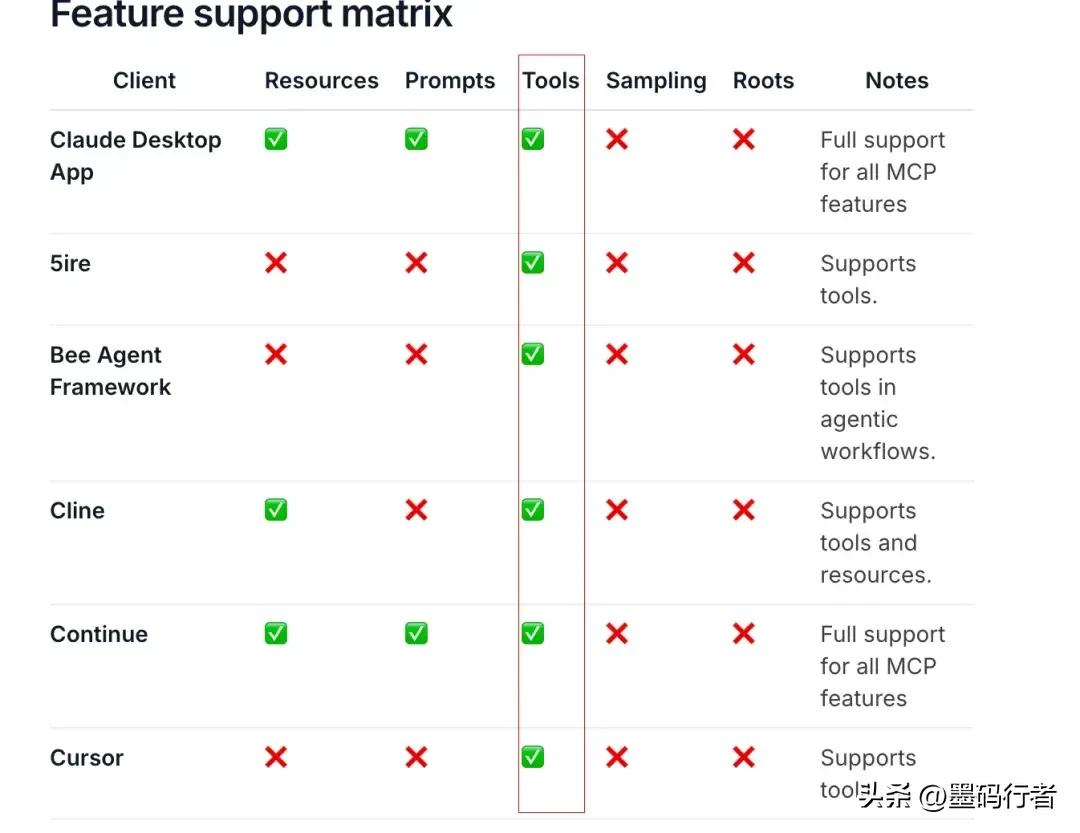
// Initialize the server, setting the name and version
this.server = new Server({
  name: "My App",
  version: "1.0.0",
}, {
  capabilities: {
    tools: {
      reverse_string: true,
    },
  },
});
Tool Definition
Tool definition consists of two steps:
- Define a list of available tools, specifying the tool name, description, and input parameter format.
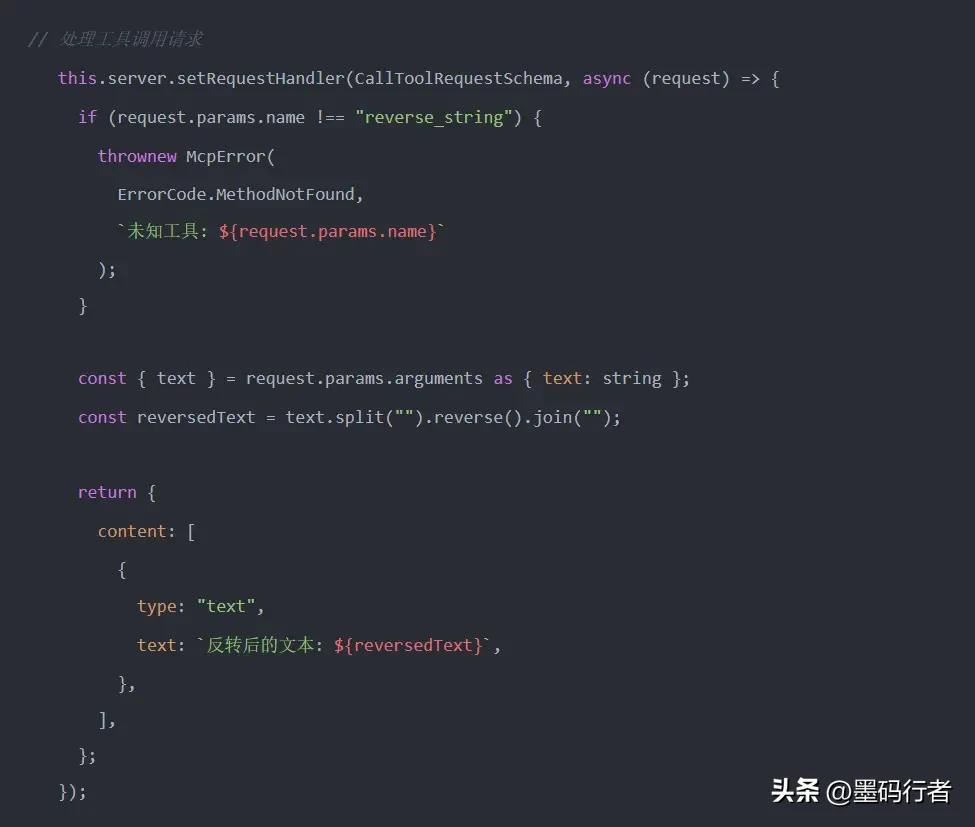
Here, I defined a string-reversing tool:
- Tool Name: reverse_string
- Tool Description: Reverses the input string.
- Input Parameter Format: Requires an object containing a text field.
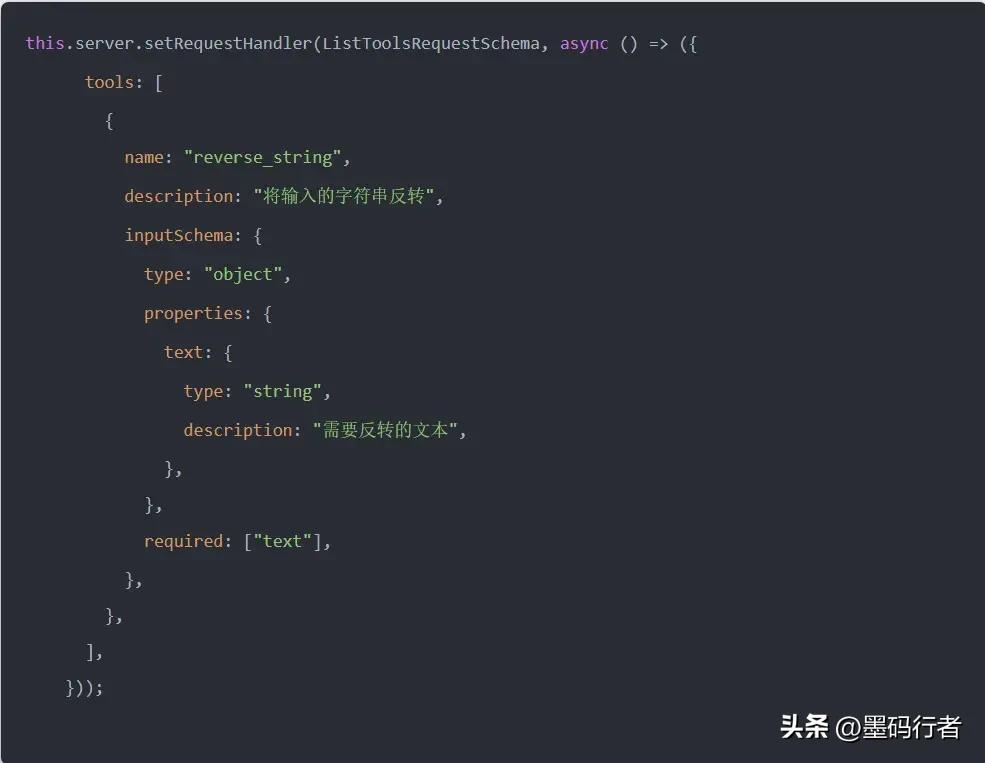
- Implement the actual functionality of the tool, intercepting the large model’s input and routing it to your actual input.
Connecting the Client (Cursor)
The MCP server needs to connect to the transport layer to communicate with the client. The method of starting the server depends on the chosen transport method:
Cursor currently supports both SSE and command methods.
const transport = new StdioServerTransport();
server.connect(transport);
Packaging and Deployment
Recommended packaging tools: tsup or tsc for packaging.
Since we are ultimately building a Node.js CLI, ensure that the compiled program can be used as a command-line tool by adding the following at the beginning:
#!/usr/bin/env node
Additionally, to make the compiled JavaScript files executable, install the shx npm package and run the following command:
shx chmod +x build/*.js
Adding Cursor
Add to the MCP server, and then you can happily chat with the composer and LLM using your custom-built large model tools.

Limitations
- Only supports composer mode.
- Currently, only the Claude model is supported; other large models are not yet supported.
Learning Resources
Official website: https://modelcontextprotocol.io/introduction
GitHub repository: https://github.com/modelcontextprotocol/typescript-sdk
MCP resource library: https://mcphub.io/registry
Comments
Discussion is powered by Giscus (GitHub Discussions). Add
repo,repoID,category, andcategoryIDunder[params.comments.giscus]inhugo.tomlusing the values from the Giscus setup tool.